Sell on WhatsApp Without a Shopify Store (Take Orders in Chat)
You already get orders on WhatsApp. A neighbour texts "send me 2 kg tomatoes and a litre of coconut oil." A regular customer asks "what is on the menu today?" You reply, you total it up in your head, you tell them the amount, and then you wait, and wait, for them to actually pay. Some days you do this thirty or forty times. The orders are real. The income is real. The chaos of typing every order by hand, adding up the rupees yourself, and chasing the payment afterwards is also very real.
You can sell on WhatsApp directly, with no Shopify store, no separate storefront URL, no monthly subscription, and no inventory software to learn. You build a product catalogue once, click Generate, and Wamafy auto-builds an in-chat order form plus a chatbot that runs the whole order inside WhatsApp. A customer types "order", picks quantities from a form that opens right in the chat, and gets back a clear total. The order happens entirely in the conversation you already use. This is Wamafy's Sell on WhatsApp feature, and the rest of this page is the full playbook.
About payments, up front: taking the order in chat does not require any payment gateway. If you already use Razorpay, you can connect it so the bot auto-sends a payment link for each order. It is not mandatory. Skip it and the bot simply tells the customer their order total, and you collect payment the way you already do, whether that is UPI, bank transfer, or cash on delivery. Razorpay is a nice-to-have that saves you a step, not a requirement to start selling.
What this guide covers
- When selling this way fits you
- Google Form vs an in-WhatsApp order form
- The pieces: products, chatbot, compute, optional payment
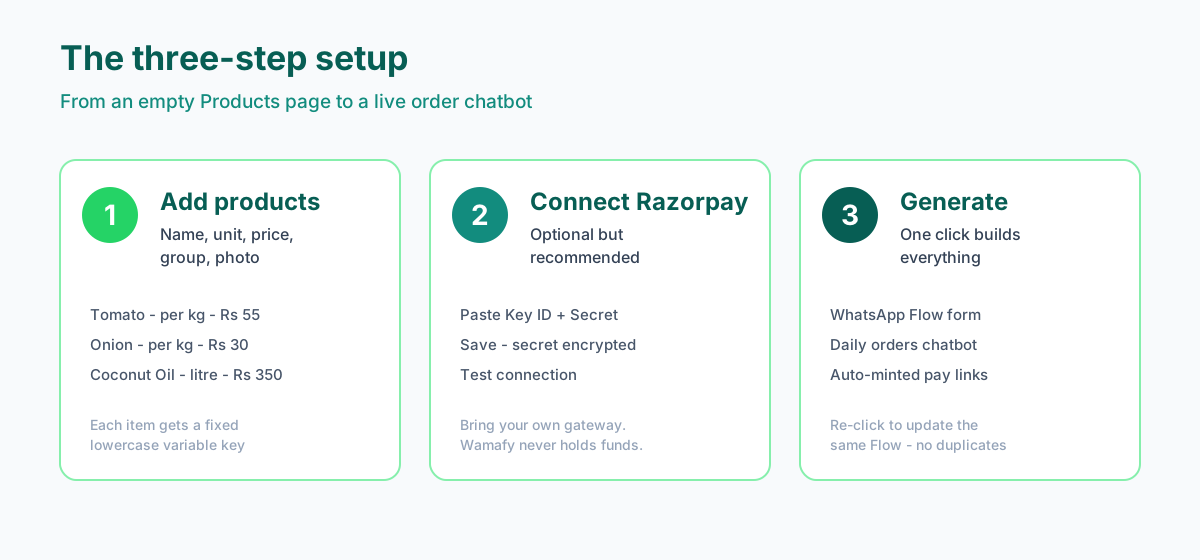
- Step 1: Add your products
- Step 2: Connect Razorpay (optional)
- Step 3: Generate the order chatbot
- What the customer sees, end to end
- Product variable reference
- The ROI math: time saved and errors avoided
- Other use cases beyond vegetables
- Honest trade-offs and limits
- Common mistakes and how to avoid them
- Frequently asked questions
- Related Wamafy resources
When selling this way fits you
This feature is built for home sellers and solo founders who already take orders over WhatsApp and do not want a full online store. If you sell daily vegetables, handmade jewelry, art prints, home-baked goods, tiffins, plants, or anything similar, and your customers already message you, you are the exact person this was made for.
Already taking orders through a form? If you take orders today through a Google Form, a website order form, Instagram or WhatsApp DMs, or a spreadsheet you copy by hand, this is for you. The trouble with a form is that it makes the customer leave the chat. They have to tap a link, wait for a browser to open, and fill a long page of fields, and at every one of those steps some of them give up and you lose the order. Even for the ones who finish, you still re-key the details into your own list by hand. With Sell on WhatsApp the order form opens inside WhatsApp itself. The customer never leaves the chat, picks quantities, taps submit, and the order lands structured in your inbox with the total already calculated.
It fits especially well when most of these are true for you:
- You take orders on your personal or business WhatsApp today, by typing back and forth.
- Your catalogue is small to medium, say five to a hundred items, not thousands.
- You do not want to pay a monthly storefront subscription or learn inventory software.
- You want the money to land in your own bank account, not sit with a middleman.
- You repeat the same kind of order many times a day and the manual work is eating your hours.
It is a weaker fit if you need a public website that strangers can browse and discover, if you carry thousands of SKUs that need real stock tracking, or if you already run a Shopify store and just want order updates pushed to WhatsApp. For that last case, see the section on trade-offs, where we point you to the Shopify path instead. There is no shame in either choice. The point is to match the tool to how you actually sell.
A sari seller in Surat reportedly runs a large business entirely through her WhatsApp catalogue, with no website and no Shopify. The lesson is not the headline number. It is that a chat-first storefront is a real, viable way to sell in India, and the only thing missing for most home sellers is a clean way to take the order and get paid without typing every line by hand.
Google Form vs an in-WhatsApp order form
If you take orders with a Google Form or a website form today, the switch is worth understanding line by line. The two tools do the same job, but where they run changes how many people actually finish and how much work lands back on you.
| Measure | Google Form or web form | In-WhatsApp order form |
|---|---|---|
| Where it opens | In a separate browser | Right inside the chat |
| The customer | Has to leave WhatsApp | Stays in WhatsApp the whole time |
| Typical completion | Lower. As a general industry ballpark, web and Google Form pages on a landing page often finish in only the rough range of 8 to 15 percent of people who start | Much higher, because there is no link to tap and no browser to wait for |
| Getting the order to you | You copy and paste each detail by hand | The order lands structured in your inbox |
| The total | No total. You add it up yourself | Auto-calculated for you |
| Payment | A separate step somewhere else | An optional Razorpay link in the same chat |
Treat the completion figures as a rough industry ballpark for browser-based forms, not a precise Wamafy measurement. The direction is the point: every extra tap and every context switch out of the chat costs you orders, and an in-chat form removes both.
The pieces: products, chatbot, compute, optional payment
Before the step-by-step, it helps to know the moving parts. You only ever touch the first one directly. Wamafy wires up the rest for you when you click Generate. The first three pieces are all you need to take orders in chat. The fourth, automatic payment, is optional.
- Products. Your catalogue lives on the Products page. Each item has a name, a unit, a price, an optional group, and an optional photo. This is the only part you maintain by hand.
- The chatbot. A rule-based flow that greets the customer, sends the order form, and walks the conversation from "order" to "paid".
- The compute step. A node inside the chatbot that multiplies each chosen quantity by its price and adds up the cart total. No mental math, no calculator.
- The payment step (optional). A node that either tells the customer their order total in plain text, or, if you have connected Razorpay, mints a payment link for the exact total. With no gateway connected, the bot simply states the total and you collect payment your usual way.
You do not build the chatbot, the compute step, or the payment step yourself. You define your products, optionally connect Razorpay, and Wamafy assembles the rest. If you want to understand how rule-based flows work in general, the no-code WhatsApp chatbot guide is a good companion read.
Step 1: Add your products
Open the Products page and add one row per item you sell. Each product has a small set of fields. They look simple, and they are, but a few of them decide how the order form behaves, so it is worth understanding each one.
- Name. What the customer sees in the form, for example "Tomato" or "Coconut Oil". Write it the way your customers say it.
- Variable key. A lowercase short name auto-suggested from the name, for example
tomato. This is how the chatbot refers to the item internally. It cannot be changed after you create the product, so if you care about clean keys, glance at it before saving. - Sold by unit. Per piece, per kg, per gram, per litre, per ml, or a custom unit like dozen, bunch, or packet. This drives the wording and the default quantity options.
- Price in rupees. The price per one unit, with up to two decimals.
- Group. Optional. Each group becomes a separate screen in the order form. Vegetables on one screen, Oil on the next, keeps a longer catalogue tidy.
- Photo. Optional. If set, the photo shows above that product's quantity dropdown in the form. This matters a lot for jewelry, prints, and bakery items, less so for tomatoes.
- Quantity options. The choices in the dropdown. Sensible defaults are filled in per unit, and you can edit up to ten rows. Each row has a value that gets multiplied by the price, plus a label the customer reads.
- Available for orders. A toggle. Turn it off for an item you are out of. Read the note in common mistakes about how this interacts with the form.
A worked example: a home veggies and oils shop
Here is a small catalogue for a home shop that sells daily vegetables and cooking oils. Two groups, eight products. This is the exact set we will follow through the rest of the guide.
| Name | Variable key | Unit | Price (Rs) | Group |
|---|---|---|---|---|
| Tomato | tomato | per kg | 55.00 | Vegetables |
| Onion | onion | per kg | 30.00 | Vegetables |
| Cucumber | cucumber | per piece | 15.00 | Vegetables |
| Potato | potato | per kg | 25.00 | Vegetables |
| Carrot | carrot | per kg | 40.00 | Vegetables |
| Coconut Oil | coconut_oil | per litre | 350.00 | Oil |
| Sunflower Oil | sunflower_oil | per litre | 160.00 | Oil |
| Mustard Oil | mustard_oil | per litre | 180.00 | Oil |
Because there are two groups, the order form will have two screens: a Vegetables screen and an Oil screen. On each screen, every available product shows as a dropdown with its quantity options plus a Skip row, so a customer who only wants oil can skip past all the vegetables. Add photos to the oils if you want the bottles to show. For loose vegetables, photos are optional.
Step 2: Connect Razorpay (optional)
This step is optional. You can skip it entirely and still take orders in chat. Most home sellers start without it. Connect Razorpay only if you want the chatbot to auto-mint a payment link for the exact cart total. Skip it and the bot simply tells the customer their order total, and you collect payment the way you already do, by UPI, bank transfer, or cash on delivery. You can always add Razorpay later and re-run Generate, so there is no reason to wait on this before you start selling.
To connect it, go to Settings, then Integrations, then Payments. You will need two values from your Razorpay account:
- Open your Razorpay Dashboard, go to Settings, then API Keys.
- Copy your Key ID. It starts with
rzp_live_for live mode orrzp_test_for test mode. - Copy your Key Secret.
- Paste both into Wamafy and click Save. The secret is stored encrypted.
- Click Test connection. When it turns green and says Verified, you are done.
Bring your own gateway: Wamafy never holds your money
This is the part to understand clearly. Wamafy does not sit between you and your customer's money. At the moment a customer finishes their order, Wamafy calls Razorpay's Payment Links API for the exact cart total, in paise, passing the customer's name and phone, plus notes that carry the conversation, lead, and flow ids so you can reconcile later. Razorpay returns a one-shot short link, the bot sends it, and the customer pays you. The funds land in your own Razorpay account and settle to your bank on your own schedule. You bring the gateway, you keep the money, and you pay Razorpay's normal transaction fee directly to Razorpay.
Razorpay is the live automatic path today. PhonePe and PayU are listed as coming soon. There is also a Payment URL template field for any other gateway. You can point it at Stripe, a manual PhonePe or PayU link, or even a plain UPI deep link like upi://pay?pa=you@upi&am={{total}}. One rule to remember: if you set both Razorpay and a manual URL template, the manual URL wins. So leave the template blank unless you specifically want to override Razorpay.
Step 3: Generate the order chatbot
On the green "Sell on WhatsApp" card, click Generate. In one click, Wamafy does all of the following for you:
- Builds a Meta WhatsApp Flow with one screen per product group. Each available product becomes a dropdown with its quantity options and a Skip row, and the photo is embedded above the dropdown if you set one.
- Uploads and publishes that Flow to Meta on your behalf. You never open Meta Business Manager or touch Flow JSON.
- Creates a chatbot named "Daily orders" with the trigger keyword "order".
The generated chatbot runs the full conversation. It sends the Flow, sanitises each submitted quantity, and computes the total. If you have connected Razorpay, it then mints a payment link for that total. If you have not, it simply tells the customer their order total in plain text, and you collect payment your usual way. After that it asks the customer for a payment-confirmation screenshot, thanks them, and ends.
If you change your catalogue later and click Generate again, Wamafy updates the same Flow and the same chatbot. It does not create duplicates. You can also override the Flow and chatbot name if you want to run separate catalogues, for example a weekday menu and a weekend special. The auto-built order form is a Meta WhatsApp Flow, so this feature needs a plan that includes Flows. That means the Bloom or Forest plan. The Seed starter plan includes zero Flows, so Generate has nothing to build there. Connecting Razorpay is bring-your-own and works on any plan. If you have not connected a WhatsApp number yet, start with the connect a WhatsApp number guide first.
What the customer sees, end to end
Here is the entire journey from your customer's side, with the veggies and oils shop above as the example.
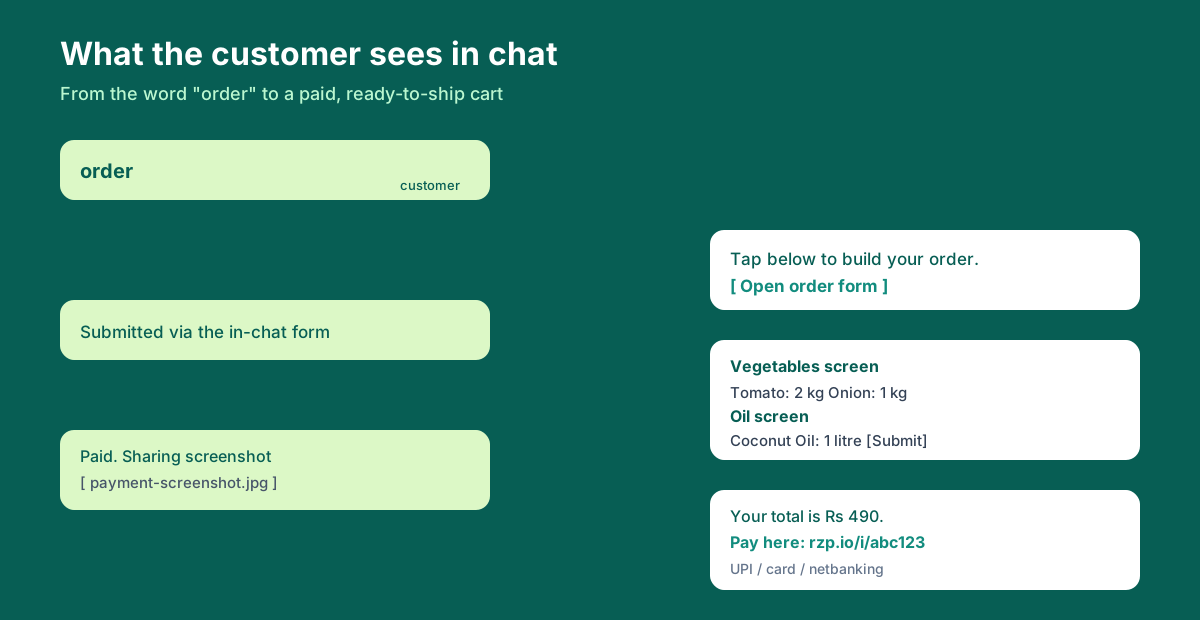
- The customer messages order.
- The bot replies and opens the in-WhatsApp order form. The form has two screens, Vegetables first, then Oil.
- On the Vegetables screen, the customer sets Tomato to 2 kg and Onion to 1 kg, and taps Skip on the rest. The dropdowns show the quantity labels you defined, and any product photo sits above its dropdown.
- On the Oil screen, the customer picks Coconut Oil at 1 litre and skips the others, then taps Submit.
- The bot computes the total. Two kg of tomato at Rs 55 is Rs 110, one kg of onion at Rs 30 is Rs 30, one litre of coconut oil at Rs 350 is Rs 350. The cart total is Rs 490.
- The bot states the total of Rs 490. If you have connected Razorpay, it also sends a payment link the customer taps to pay by UPI, card, or netbanking. If you have not, the customer pays you the way you already arrange, such as a UPI handle or cash on delivery.
- The bot asks for a payment screenshot. The customer shares it. The bot thanks them and ends the conversation.
On your side, you open the inbox and see the whole thread in order: the submitted cart, the payment link that went out, the customer's screenshot, and a tidy conversation that is ready to pack and ship. No guessing what they wanted. No re-totalling. No "did you pay yet?" The two-way inbox is shared, so if you have help, a teammate can pick up where you left off.
One important note on the screenshot
The bot asks for a payment screenshot because that is the customer's acknowledgement, not proof. A screenshot can be faked. Wamafy intentionally does not ingest Razorpay payment webhooks today, so the screenshot is a courtesy signal, not verification. For low-value daily orders that is usually fine. For higher-value orders, cross-check your Razorpay email and dashboard, which are the authoritative record of what actually got paid. Treat the screenshot as "the customer says they paid" and Razorpay as "the bank says they paid".
Product variable reference
Inside chatbots, every product field is available as a variable, keyed by the product's variable key. You will not need these for the basic generated flow, but they are useful if you customise the chatbot later, for example to add a stock check or a custom message. The key is case-sensitive and lowercase.
| Variable | What it returns | Example for the veggies shop |
|---|---|---|
{{products.tomato.price}} | The unit price in rupees | 55.00 |
{{products.tomato.label}} | The display name shown to customers | Tomato |
{{products.tomato.unit}} | The selling unit | per kg |
{{products.tomato.available}} | Whether the item is available for orders | true |
{{products.tomato.group_label}} | The group the item belongs to | Vegetables |
One thing that trips people up: the key is case-sensitive. {{products.Tomato.price}} with a capital T will not match a product whose key is tomato. Copy the key exactly as it appears on the Products page.
The ROI math: time saved and errors avoided
The honest reason to set this up is not that it looks modern. It is that manual order-taking quietly costs you hours and money every single day. Let us put real, illustrative numbers on it. Treat these as a model you can adjust to your own shop, not a promise.
Time saved per order
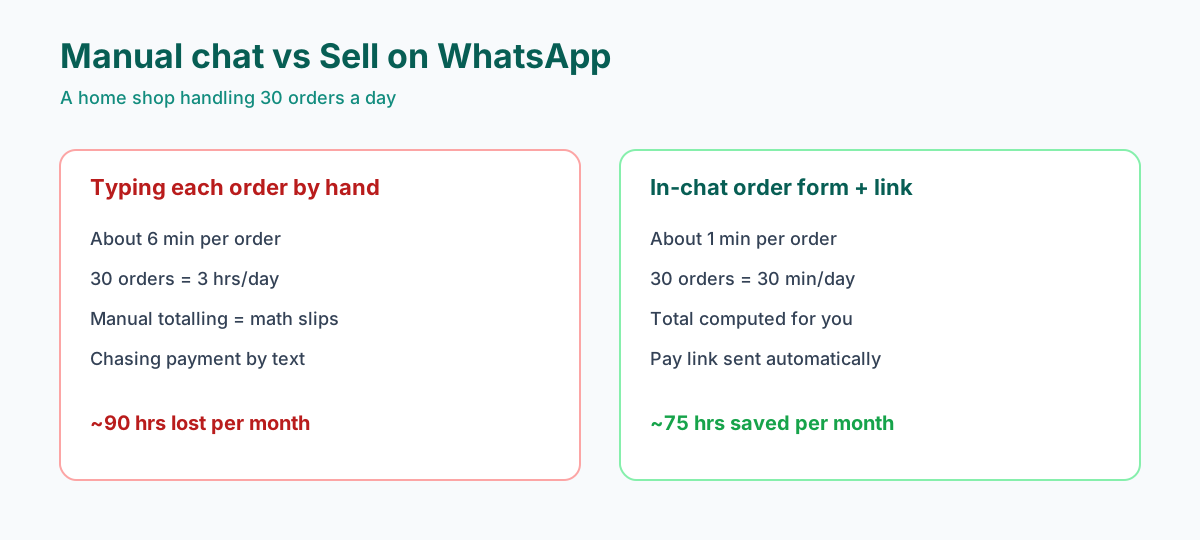
Taking an order by hand means reading the message, asking follow-up questions, totalling the items, typing the amount back, and then chasing the payment. Call it about six minutes of your attention per order once you include the back-and-forth. The in-chat form does the reading, totalling, and link-sending for you, so your involvement drops to roughly one minute of glancing and packing.
| Measure | By hand | With Sell on WhatsApp |
|---|---|---|
| Time per order | About 6 min | About 1 min |
| At 30 orders/day | About 3 hrs/day | About 30 min/day |
| Per month (26 days) | About 78 hrs | About 13 hrs |
| Time saved/month | About 65 hrs | |
Sixty-five hours a month is more than two full working days back in your week, every week. For a home seller doing twenty to forty orders a day, that is the difference between running ragged and actually scaling. Even at the lower end of twenty orders a day, you are looking at well over forty hours saved a month.
Fewer errors
Manual totalling produces mistakes. Miss a line, add wrong, quote yesterday's price by accident. If even one in twenty hand-totalled orders has an error, that is a customer who is annoyed or a margin you quietly gave away. At thirty orders a day that is around thirty-nine wrong totals a month. The compute step does the multiplication and addition the same way every time, so that error class essentially goes to zero.
No monthly storefront subscription
Selling this way means you are not paying for a separate online store. A basic hosted store plan plus a domain plus a few paid apps can run anywhere from a few hundred to a couple of thousand rupees a month before you make a single sale. Selling in chat removes that fixed cost. Your only variable cost on the payment side is Razorpay's normal per-transaction fee, which you would pay on any platform anyway, and it comes out of money you have already collected.
Ready to set this up? The fastest path is to add a few products and click Generate. You can add Razorpay later if you want automatic payment links. Start a 14-day free Wamafy trial. Card authorized during trial activation, charged only on day 15. Then follow the sell on WhatsApp Help guide to wire it up step by step.
Other use cases beyond vegetables
The veggies and oils shop is just one shape. The same three-step setup fits many home businesses. The fields you lean on change with what you sell.
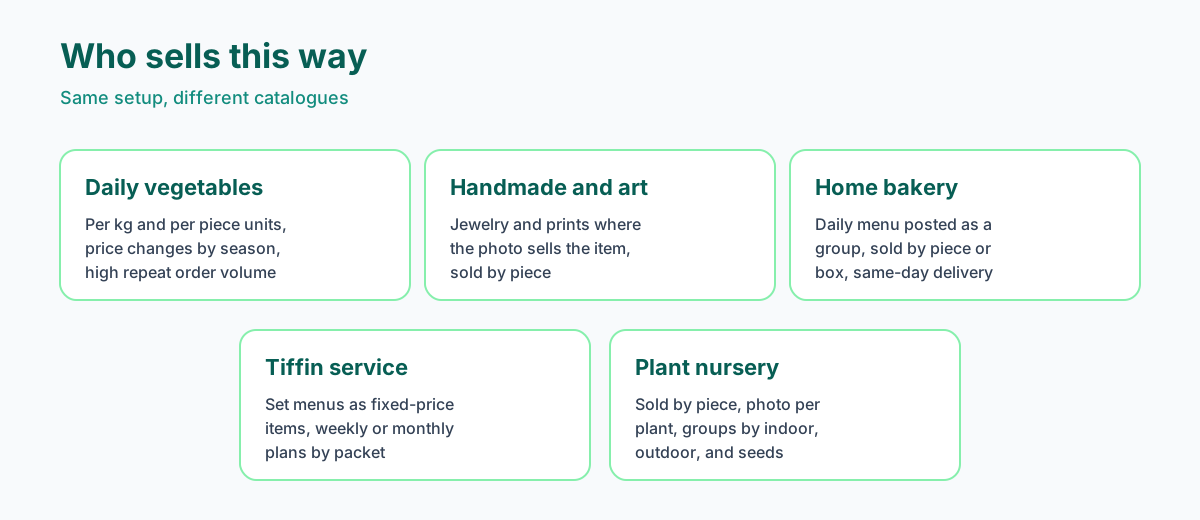
- Handmade jewelry and art prints. Here the photo sells the item, so set a clear photo on every product. Sell by piece. Keep each collection in its own group so the form reads like a small lookbook with prices.
- Home bakery. Post the day's menu as a group, with each item sold by piece or by box. Because prices are read at order time, you can change tomorrow's menu prices and the next conversation picks them up. Photos of the cakes and breads do real work here.
- Tiffin and meal service. Model set menus as fixed-price items, sold by packet or by plan. A weekly plan and a monthly plan can each be a product. Customers pick the plan from the form and get their total, then pay by link if you connected Razorpay or by your usual method if you did not.
- Plant nursery. Sell by piece, one photo per plant, and group by indoor, outdoor, and seeds. Buyers love seeing the exact plant before they commit, and the per-screen groups keep a big catalogue browsable.
The pattern across all of these is the same. Define the catalogue once, decide which items deserve photos, group sensibly, and let the generated form and chatbot carry every order. If your customers fill in structured information often, it is worth reading how WhatsApp Flows forms work in 2026, since the order form is built on exactly that technology.
Honest trade-offs and limits
No tool is free of trade-offs, and pretending otherwise wastes your time. Here is what selling in chat does not do well, stated plainly, so you can decide with open eyes.
- The dropdown catalogue is simpler than a real website. A form with grouped dropdowns is fast and friction-free, but it is not a rich browsing experience with search, filters, reviews, and big galleries. If discovery and browsing are central to your sale, a website still wins on that one axis.
- Payment verification is screenshot plus manual reconciliation today. There is no webhook auto-confirm. The bot collects a screenshot, and you cross-check Razorpay for anything high-value. This is a deliberate, honest limitation, not an oversight.
- No inventory or stock management. There is no stock count that decrements as orders come in. The Available toggle is on or off, not a quantity. If you need true stock control, this feature does not provide it.
- Meta limits Flow republishing to once every five minutes. When you change prices or availability, the form's labels only refresh after you click Rebuild on the card, and Meta allows one republish per five minutes. So you cannot flip the form a dozen times in a minute.
- You bring and pay your own Razorpay fees. Wamafy never holds your money, which is the point, but it also means the transaction fee is between you and Razorpay. Budget for it like you would on any platform.
If you already run a Shopify store, the chat-first form is probably not your main tool. In that case you want order updates and abandoned-cart messages pushed from Shopify into WhatsApp instead, which is a different setup. Read how to set up WhatsApp for Shopify in 10 minutes for that path. Sell on WhatsApp is for sellers who do not want a storefront at all.
Common mistakes and how to avoid them
A few specific gotchas come up again and again. Knowing them in advance saves a confused afternoon.
- Too many items in one group. Keep each group under about twelve items so the dropdowns stay easy to scroll on a phone. A hundred products spread across ten groups is perfectly fine. A hundred in one group is a nightmare to scroll.
- Wrong case in a variable key. Keys are lowercase and case-sensitive.
{{products.Tomato.price}}will not match the keytomato. Copy keys exactly. - Expecting the out-of-stock toggle to hide an item instantly. Turning off Available does not remove the item from the live Flow until you click Rebuild. Until then a customer could still tap an unavailable item. If this matters, add a Condition node in the chatbot that checks
{{products.X.available}}and handles the case. - An empty cart. If a customer skips every single item, the total is zero, and Razorpay would reject a zero-amount link with an "Invalid amount" error. The generated bot guards against this, so you do not have to, but it is worth knowing why that guard exists.
- Worrying about paise. Razorpay expects amounts in paise. Wamafy converts your rupee total to paise automatically, so a Rs 490 cart is sent as 49000 paise without you doing anything.
- Editing a key after the fact. The variable key cannot change once a product is created. If you must rename the key, create a fresh product and remove the old one, then Generate again.
One more thing about prices, because it is a genuinely useful behaviour. Prices are read at runtime. Change a price on the Products page and every new conversation uses the new price immediately. A single customer's total is snapshotted when their conversation starts, so it never shifts mid-order even if you edit the price while they are choosing. The only thing that does not auto-refresh is the price text shown inside the Flow's dropdown labels. Those update only when you click Rebuild, subject to Meta's one-republish-per-five-minutes rule. So your maths is always current, while the visible label text catches up on Rebuild.
Related Wamafy resources
- Grow your business on WhatsApp The complete guide to getting and keeping customers on WhatsApp.
- Send WhatsApp leads to Google Sheets Push every lead your chatbot collects straight into a Google Sheet.
- WhatsApp abandoned cart recovery for Shopify Win back abandoned Shopify carts with a WhatsApp message sequence.
Frequently asked questions
Do I need a Shopify store or a website to sell on WhatsApp with Wamafy?
No. The whole point of Sell on WhatsApp is that you take orders and collect payment inside the chat with no storefront, no website URL, and no inventory software. You add products, optionally connect Razorpay, and click Generate. If you do happen to run a Shopify store, a different Wamafy integration pushes order updates to WhatsApp instead.
Can this replace the Google Form I use for orders?
Yes. It does the same job as your Google Form, but inside WhatsApp where your customers already are. The total is auto-calculated, and the finished order lands structured in your inbox instead of in a spreadsheet you copy by hand. There is no browser hop, which is exactly why in-chat forms finish more often than a form a customer has to leave the chat to open.
Does Wamafy hold or touch my money?
No. You bring your own Razorpay account. At order time Wamafy calls Razorpay's Payment Links API for the exact total, the customer pays you, and the funds land in your own Razorpay account and settle to your bank. Wamafy never holds the money and is not a payment aggregator.
Which plan do I need for Sell on WhatsApp?
The auto-built order form is a Meta WhatsApp Flow, so you need a plan that includes Flows. That is the Bloom or Forest plan. The Seed starter plan includes zero Flows, so Generate has nothing to build on it. Connecting Razorpay is bring-your-own and works on any plan.
Do I have to use Razorpay to sell on WhatsApp?
No. Razorpay is optional. Without a connected gateway the chatbot simply tells the customer their order total, and you collect payment the way you already do, by UPI, bank transfer, or cash on delivery. Connect Razorpay only if you want the bot to auto-send a payment link for each order. You can add it later and re-run Generate to switch on automatic links. PhonePe and PayU are listed as coming soon, and a Payment URL template field lets you point at other gateways or a UPI deep link in the meantime.
How does the customer actually pay?
When Razorpay is connected, the bot sends a one-shot Razorpay payment link for the cart total. The customer taps it and pays by UPI, card, or netbanking, whichever they prefer, without leaving WhatsApp for long. The money goes to your account, and the bot then asks for a payment screenshot before thanking them.
Is the payment screenshot proof that I got paid?
No. The screenshot is the customer's acknowledgement, and it can be faked. Wamafy does not ingest payment webhooks today, so for higher-value orders you should cross-check your Razorpay email and dashboard, which are the authoritative record of what was actually paid. For small daily orders the screenshot is usually a reasonable signal.
What happens when I change a price?
Prices are read at order time. Change a price on the Products page and every new conversation uses it immediately. A customer who is mid-order keeps the price snapshotted at the start of their conversation, so their total never shifts. The only lag is the price text shown in the Flow's dropdown labels, which refreshes when you click Rebuild, and Meta allows one Flow republish every five minutes.
How many products and groups can I have?
Around a hundred products across about ten groups works well. Keep each group under roughly twelve items so the on-phone dropdowns stay easy to scroll. Each group becomes its own screen in the order form, so groups are how you keep a larger catalogue browsable.
Can I run more than one catalogue?
Yes. Generate normally updates the same Flow and chatbot so you never get duplicates, but you can override the Flow and chatbot name to run a separate catalogue, for example a weekday menu and a weekend special, each with its own trigger.
What if a customer skips every item in the form?
The cart total would be zero, and Razorpay rejects a zero-amount link with an "Invalid amount" error. The generated chatbot guards against an empty cart, so this is handled for you. It is the most common reason that error appears, and the bot stops it before Razorpay ever sees a zero.
Start taking orders in chat today. Add your products and click Generate. Connect Razorpay only if you want automatic payment links. Start a 14-day free Wamafy trial. Card authorized during trial activation, charged only on day 15. Then open the sell on WhatsApp Help guide below and wire it up in a few minutes. If you also want each paid order to flow into a spreadsheet for your own records, see how to send WhatsApp leads to Google Sheets.
Now wire it up →
Step-by-step Help guides for the moves above.