Send WhatsApp Leads Straight to Google Sheets
A lead messages your WhatsApp number at 9:47 PM. By the time you open the chat the next morning, scroll up, copy the name, copy the phone number, and paste both into a spreadsheet, eleven hours have passed and the lead has already booked with someone else. Multiply that by every enquiry your business gets, and the cost of slow, manual lead capture stops being a small annoyance. It becomes the biggest leak in your sales funnel.
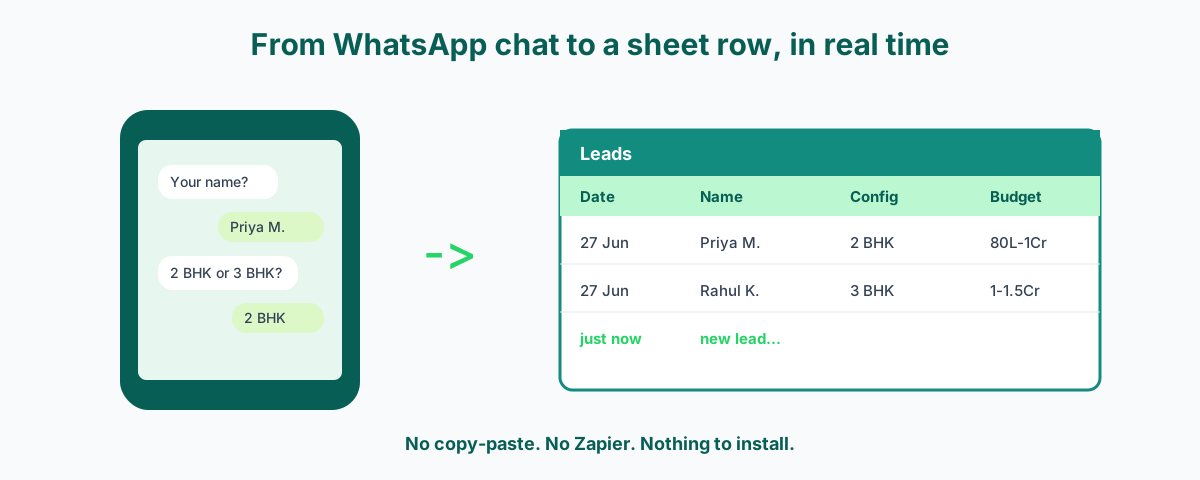
This guide shows you how to close that leak. You will learn how to send every lead your WhatsApp chatbot collects straight into a Google Sheet, in real time, the moment the customer answers. No copy-paste. No Zapier. No third-party automation tool. Nothing to install. Wamafy has a built-in Google Sheet node inside its chatbot builder that does this natively, and this page is the full playbook: how it works, how to wire it up step by step, the exact use cases it solves for leads, appointments, and real estate, the ROI math behind it, and the common mistakes that trip people up.
What this guide covers
- The real cost of capturing WhatsApp leads by hand
- Why a Google Sheet is the right home for your leads
- How the Wamafy Google Sheet node works (the three pieces)
- Step-by-step setup: from blank sheet to live capture
- Columns and variable mapping (with a worked example)
- What the generated Apps Script looks like
- Confirming success: branch on http_ok so customers never see an error
- Use cases: leads, appointments, real estate, and more
- ROI math: what auto-logging every lead is actually worth
- Going richer: WhatsApp Flows for multi-field capture
- Common mistakes and how to fix them
- Security, privacy, and volume limits
- Frequently asked questions
- Related Wamafy resources
The real cost of capturing WhatsApp leads by hand
Most small businesses in India run on WhatsApp. A customer sees your ad, your Instagram post, your Google Business listing, or your "Click to WhatsApp" button, and they message you. That first message is gold. It is a person raising their hand and saying they are interested right now.
The problem is what happens next. In most businesses the answer is: nothing happens fast. The message sits in the WhatsApp inbox. Someone eventually reads it. If they are busy, they reply later. If they want to keep a record, they switch apps, open a spreadsheet, and type the details by hand. By then the enquiry has cooled, the details are half-remembered, and a few leads have slipped through entirely because nobody logged them at all.
This manual loop costs you in three ways:
- Lost leads. Anything not written down is forgotten. A busy day means three or four enquiries never make it into any list, so they never get followed up.
- Slow first contact. Speed matters more than almost anything else in sales. Research on real estate enquiries found that responding within five minutes makes you many times more likely to convert than waiting half an hour, and the average agent takes over fifteen hours to reply. The same pattern holds for clinics, coaching centres, and any local service. Whoever replies first usually wins.
- No shared view. When leads live in one person's chat, the rest of the team is blind. Nobody can pick up a follow-up, nobody can see the pipeline, and nothing is measurable.
A Google Sheet that fills itself, the instant a lead answers your chatbot, fixes all three at once.
Why a Google Sheet is the right home for your leads
You could argue a lead belongs in a CRM. For a large sales team with a budget, that is true. For the solo founder, the local clinic, the two-person real estate desk, or the coaching centre running on word of mouth, a Google Sheet is the honest answer. Here is why it works so well:
- Everyone already knows it. No training, no onboarding, no licence. Your receptionist, your partner, and your part-time helper can all open it.
- It is shared by default. One link, and the whole team sees the same live list. Comments, filters, and colour-coding come for free.
- It is free and unlimited enough. For typical lead volumes you will never hit a wall.
- It connects to everything later. When you do outgrow it, the data is already structured and exports cleanly into any tool you move to.
So the goal is simple: when your WhatsApp chatbot collects a lead, that lead should appear as a new row in your sheet automatically. The rest of this guide is how.
How the Wamafy Google Sheet node works (the three pieces)
Wamafy's chatbot builder includes a dedicated Google Sheet node. It is not an add-on you buy, not a connector you install, and not a separate automation tool you have to learn. It ships inside the chatbot builder and works on every plan that includes chatbots. You drop the node into your flow, point it at your sheet, and it writes a row every time a lead reaches that point in the conversation.
Under the hood, three pieces work together. Understanding them makes the setup obvious and the troubleshooting easy.
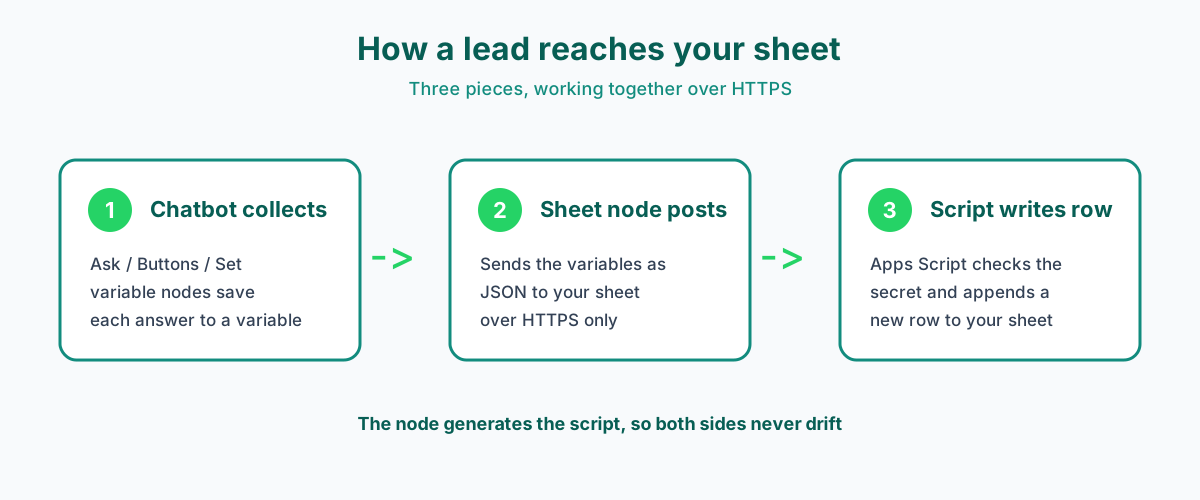
- The chatbot collects the answers. Earlier in the flow, Ask nodes, Buttons, and Set variable nodes gather what the lead tells you and store each answer in a variable. For example, the lead's reply to "What is your name?" gets saved as a variable you can name
name. - The Google Sheet node posts the data. When the flow reaches the Google Sheet node, it bundles the variables you chose into a small JSON message and sends it over HTTPS to your sheet. The node refuses any plain
http://address, so the data is always encrypted in transit. - A small Apps Script on the sheet writes the row. Google Sheets can run a tiny script called a Web App. That script has one job: receive the JSON the node sends and append it as a new row. You do not write this script yourself. The node generates it for you, so the Wamafy side and the Google side always agree on the column order and can never drift apart.
That last point is the quiet advantage. Because the node writes the script that the sheet runs, you are not hand-coding anything fragile. You define your columns once in the node, click a button, and paste the result into Google. If you change your columns later, you regenerate and re-paste. The two sides stay in sync by design.
One more thing worth saying plainly: because the script runs as the owner of the sheet, there are no Google API keys to create, no OAuth tokens to refresh, and no cloud project to manage. The sheet's own permissions do the work. This is why the setup is far simpler than the "connect your Google account" dance other tools put you through.
Step-by-step setup: from blank sheet to live capture
Setting this up the first time takes about ten minutes. After that, every lead flows in on its own. The work splits into two halves: the Google side (done once) and the Wamafy side (done in the chatbot builder). Do them in this order.
Part 1: Prepare the Google Sheet
- Create or open a Sheet. Make a fresh Google Sheet for your leads, or open an existing one.
- Name the tab. Rename one tab to something clear, for example
Leads. Note this is the tab name (the little tab at the bottom), not the file name. You will type this exact word into the node later. - Add a header row. In row 1, type your column headers left to right, for example:
Date,Name,Phone,Email,Interest. The order here must match the order you set in the node.
Part 2: Set up the node in Wamafy
- Build the collection part of your flow. In the Wamafy chatbot builder, add Ask, Buttons, or Set variable nodes to collect each piece of information you want, saving each answer into a variable.
- Add the Google Sheet node after the collection steps.
- Fill in the node settings:
- Tab name - type the exact tab name from your sheet, for example
Leads. - Shared secret - pick a random word or phrase. This is a password that guards your sheet so strangers cannot write to it. Keep it private.
- Columns - for each column, type the header exactly as it appears in row 1 of your sheet, then choose its value. The value can be a variable the bot collected, an automatic Date or Time, or a Custom fixed value. Drag the rows to reorder them so they line up with your sheet, left to right.
- Tab name - type the exact tab name from your sheet, for example
- Click "Generate Apps Script code". The node produces a ready-made script that already knows your columns and your shared secret.
Part 3: Deploy the script on Google
- In your Google Sheet, open Extensions then Apps Script.
- Paste the generated script, replacing anything already there.
- Click Deploy, then New deployment.
- Choose type Web app. Set Execute as: Me and Who has access: Anyone. Click Deploy.
- Authorise the script when Google asks. You are giving your own script permission to write to your own sheet.
- Copy the Web App URL. It ends in
/exec. This is the address the node will post to.
Part 4: Connect and publish
- Back in the node, paste the
/execURL into the Web App URL field. - Publish the chatbot. Send a test message to your number, walk through the flow, and watch a new row appear in your sheet. That is the whole loop working.
The single most common mistake is using the/editURL from your browser address bar instead of the/execURL from the deployment screen. The node needs the/execone. The/editone is just the link to open the sheet and will never work.
Columns and variable mapping (with a worked example)
The mapping step is where most of your setup decisions live, so it helps to see a full example. Say you run a coaching centre and your chatbot asks for the student's name, the parent's phone, the course they want, and their preferred batch timing. You also want every row stamped with the date it arrived.
Your sheet header row (row 1) would read: Date, Student Name, Phone, Course, Batch. In the node, you set up the columns to match, top to bottom, like this:
| Sheet header | Node value type | Source |
|---|---|---|
| Date | Auto Date | Set by the node automatically |
| Student Name | Variable | student_name (from an Ask node) |
| Phone | Variable | phone (the lead's WhatsApp number, captured automatically or asked) |
| Course | Variable | course (from a Buttons node: NEET, JEE, Foundation) |
| Batch | Variable | batch (from a Buttons node: Morning, Evening) |
The rule to remember: the order of columns in the node, top to bottom, must match the order of headers in your sheet, left to right. If they do not line up, names land under phone numbers and the sheet becomes a mess. Drag to reorder in the node until it matches, then regenerate the script.
The three value types cover almost everything you will need:
- Variable - any answer the bot collected. This is the workhorse.
- Auto Date / Time - the node stamps the moment the row was written. Great for sorting and for measuring how fast you followed up.
- Custom fixed value - a constant for every row, for example a Source column always set to "WhatsApp bot" so you can tell these leads apart from others later.
What the generated Apps Script looks like
You never have to write this code, but it helps to see the shape of it so the moving parts feel less mysterious. The generated script is short. It receives the JSON, checks the shared secret, and appends a row. Here is an illustrative version of what the node produces:
function doPost(e) {
  var data = JSON.parse(e.postData.contents);

  // Guard: reject anyone who does not know the shared secret
  if (data.token !== 'YOUR_SHARED_SECRET') {
    return ContentService
      .createTextOutput(JSON.stringify({ ok: false, error: 'forbidden' }))
      .setMimeType(ContentService.MimeType.JSON);
  }

  var sheet = SpreadsheetApp
    .getActiveSpreadsheet()
    .getSheetByName('Leads');

  // Order here matches your header row, left to right
  sheet.appendRow([
    new Date(),
    data.name,
    data.phone,
    data.email,
    data.interest
  ]);

  return ContentService
    .createTextOutput(JSON.stringify({ ok: true }))
    .setMimeType(ContentService.MimeType.JSON);
}
Three things to notice. First, doPost is a top-level function. It has to be, or Google will not run it. Second, the secret check sits right at the top, so a request without the correct token gets bounced before it can touch your data. Third, the appendRow array order matches your header row exactly. When you change columns in the node and regenerate, this array changes too, which is why regenerating and re-pasting keeps everything aligned.
Confirming success: branch on http_ok so customers never see an error
A small thing separates a polished chatbot from a clumsy one: what the customer sees after they answer. You do not want a lead to ever see a raw error because your sheet hiccupped. Wamafy makes this easy.
After the Google Sheet node runs, it sets two variables you can use:
http_ok- true if the write succeeded, false if it did not.http_status- the response code. 200 means the request reached the script. 401 or 403 shows up when the shared secret does not match.
The recommended pattern is to add a Condition node right after the Google Sheet node and branch on http_ok:
- On true: send a confident confirmation, for example "You are on the list. Our team will be in touch shortly."
- On false: send a soft, safe message, for example "Got it, thanks. We will reach out soon."
Either way the customer gets a friendly reply, and a rare sheet problem never surfaces as an error in their chat. You can also use the false branch to alert yourself, so you know to check the connection.
Use cases: leads, appointments, real estate, and more
The Google Sheet node fits almost any business that gets enquiries on WhatsApp. Here are the patterns that come up most often, with the exact fields worth capturing.
1. Collecting leads (the general case)
The bread and butter. Your chatbot greets a new contact, asks a few questions, and logs the answer set to a shared team sheet that everyone can see and act on.
Typical columns: Date, Name, Phone, Email, Interest or Plan. Add a Custom "Source" column set to "WhatsApp bot" so these leads are easy to filter later. Because the sheet is shared, anyone on the team can claim a row, mark it contacted, and add notes, turning a flat list into a lightweight pipeline.
2. Booking and fixing appointments
For a salon, a clinic, or a consultancy, the chatbot can collect the service wanted, the preferred date and time, and the contact details, then drop a row into a bookings sheet. Your front desk works straight off that sheet.
Typical columns: Date Logged, Name, Phone, Service, Preferred Date, Preferred Time. On the Bloom or Forest plan you can make this even smoother with a WhatsApp Flow that shows a proper date picker inside the chat, so the customer taps a date instead of typing it. More on Flows below.
3. Real estate enquiry capture
Real estate is where speed-to-lead pays off the most, so this deserves a closer look. A property buyer or renter who messages you is comparing several agents at once. The first one to call back with the right options usually gets the visit, and the visit is most of the battle.
Set your chatbot to qualify the enquiry in a few taps, then log it instantly to your agent leads sheet:
| Question | Captured as |
|---|---|
| Buy or rent? | Buttons: Buy / Rent |
| Configuration? | Buttons: 1 BHK / 2 BHK / 3 BHK |
| Preferred location or locality? | Ask node, free text |
| Budget? | Buttons or Ask node, price bands |
| Timeline? | Buttons: Immediate / 1-3 months / Just looking |
| Need home loan help? | Buttons: Yes / No |
The instant the lead finishes, a fully qualified row lands in your sheet: configuration, budget, locality, buy versus rent, timeline, and financing need, all stamped with the time it arrived. Now your agent is not starting cold. They open the sheet, see a 2 BHK rental enquiry in a known locality with a known budget that came in two minutes ago, and they call back while the lead is still warm. That is the difference between a 2 percent and a 7 percent conversion rate.
4. Coaching and admissions enquiries
An academy or coaching centre runs admissions seasons where enquiries spike. The chatbot captures student name, parent phone, course of interest, and preferred batch, then logs each to an admissions sheet the counselling team works through. No enquiry from a campaign or a hoarding gets lost during the rush.
5. E-commerce order and feedback capture
A small online seller can use the bot to log manual WhatsApp orders (product, quantity, delivery pincode, contact) or to collect post-delivery feedback (order ID, rating, comment) into a sheet for review. It is a simple way to keep a record without a full order system.
ROI math: what auto-logging every lead is actually worth
The value here is not abstract. It is the leads you stop losing and the deals you close faster. Let us put real numbers on it with a real estate agent, because the speed effect is strongest there.
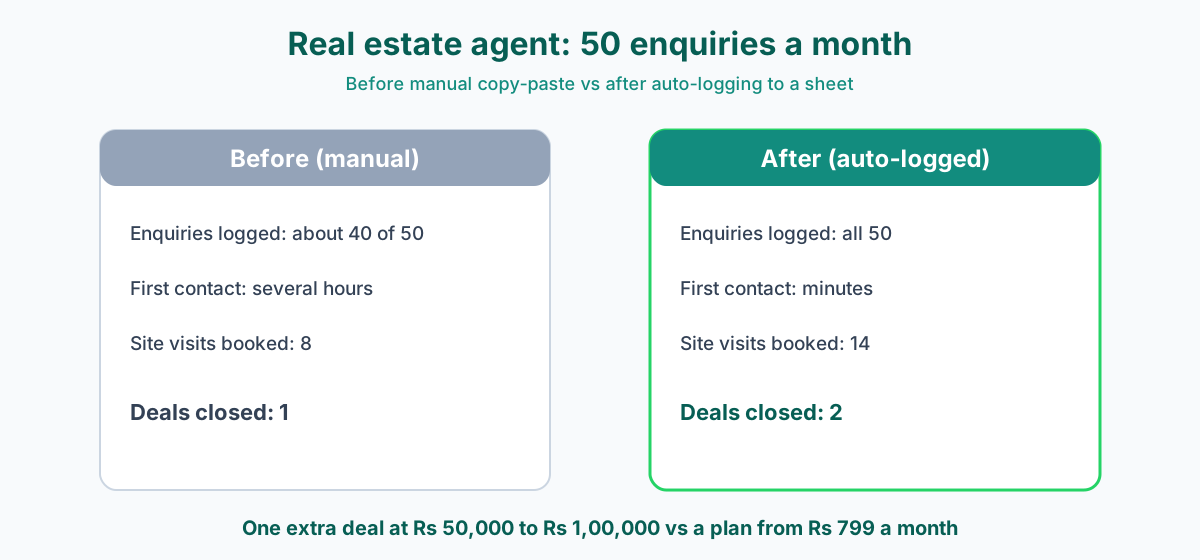
Take an agent who gets 50 enquiries a month from property portals and ads. Suppose today, with manual copy-paste and a busy schedule, the picture looks like this:
| Metric | Before (manual) | After (auto-logged to sheet) |
|---|---|---|
| Enquiries per month | 50 | 50 |
| Enquiries actually logged | About 40 (some slip on busy days) | 50 (every one) |
| Average time to first contact | Several hours | Minutes |
| Site visits booked | 8 | 14 |
| Deals closed | 1 | 2 |
The mechanism is simple. First, you stop losing the ten enquiries a month that never got written down, so your top of funnel grows by a quarter for free. Second, because the row arrives the instant the lead answers, you call back in minutes instead of hours, and faster first contact lifts the share of enquiries that turn into site visits. More visits means more closures.
One extra closed deal a month, for an agent earning even a modest brokerage of Rs 50,000 to Rs 1,00,000 per transaction, is Rs 50,000 to Rs 1,00,000 in additional revenue every month. Against a Wamafy plan that starts at Rs 799 a month, the return is not close. The numbers above are illustrative, but the shape holds for any business where enquiries are time-sensitive: clinics filling appointment slots, coaching centres in admissions season, salons booking weekend chairs. The lead you log and answer first is the lead you keep.
There is a softer return too. A shared sheet that fills itself gives you, for the first time, a real measurement of your funnel: how many enquiries, from where, how fast answered, how many converted. You cannot improve what you cannot see, and this is the cheapest way to start seeing it.
Ready to wire this up? Start a 14-day free Wamafy trial. Card authorized during trial activation, charged only on day 15. Then follow the in-app guide on connecting your chatbot to a Google Sheet to have leads flowing into a row within minutes.
Going richer: WhatsApp Flows for multi-field capture
Ask nodes are perfect for a handful of questions. But when you need to collect many fields at once, asking them one message at a time can feel slow to the customer. This is where a WhatsApp Flow helps.
A Flow is an in-chat form. Instead of a back-and-forth of single questions, the customer taps a button, a clean form opens inside WhatsApp with multiple fields, date pickers, and dropdowns, and they fill it in and submit once. The Flow feeds every answer back into the chatbot as variables, which the Google Sheet node then writes out exactly as it would for Ask-node answers. For an appointment booking with a real date picker, or a detailed property enquiry with several dropdowns, a Flow is a noticeably smoother experience.
Be aware of the trade-off. WhatsApp Flows require the Bloom or Forest plan. The starter Seed plan includes zero Flows. If you are on Seed, you can still capture everything you need with Ask nodes plus the Google Sheet node, which work on any plan that includes chatbots. So the simple path is available to everyone, and Flows are an upgrade for richer capture when you are ready.
For a deeper look at building in-chat forms, see the Wamafy guide on WhatsApp Flows and in-chat forms , and the broader walkthrough on building a no-code WhatsApp chatbot .
Common mistakes and how to fix them
Almost every problem people hit has the same handful of causes. Knowing them in advance saves you the frustration.
- Edited the script but did not deploy a new version. Saving changes in the Apps Script editor is not the same as deploying them. If your live Web App is running stale code, you may see "Script function not found". Fix: open Manage deployments and deploy a New version of the existing deployment, which keeps the same
/execURL. - doPost is not a top-level function. Google only calls
doPostif it sits at the top level of the script. If you nest it inside another function, nothing runs. The generated script gets this right, so the usual cause is hand-editing. - The shared secret does not match. If the secret in the node and the secret in the script differ by even one character, the script returns "forbidden". The tricky part: a forbidden response is still an HTTP 200, so it looks successful but no row is written. Check that both secrets are identical.
- Used the /edit URL instead of /exec. The address bar link to your sheet ends in
/editand is not the Web App. Always use the/execURL from the deployment screen. - Column order does not match. If
appendRoworder and your header row order disagree, data lands in the wrong columns. Reorder the columns in the node, regenerate, and re-paste. - Tried a plain http address. The node only accepts HTTPS. A non-secure URL is rejected by design, for your protection.
The pattern across all of these: when you change anything, regenerate the script in the node and redeploy a new version on Google. That single habit prevents most issues.
Security, privacy, and volume limits
It is worth being clear about how this stays safe, because the Web App URL is public.
The shared secret is your lock. Anyone who knew your /exec URL could try to post to it, which is exactly why the secret exists. The script checks it on every request and rejects anything without the right token. Keep both the URL and the secret private, treat them like a password, and your sheet stays yours.
Only your chosen columns leave Wamafy. The node sends only the variables you mapped to columns. Nothing else about the conversation, no chat history, no other contact data, is included. You control exactly what gets written.
No Google keys to manage. Because the script runs as the sheet owner, there are no API keys or OAuth tokens to create, store, or rotate. The sheet's own permissions handle access. Fewer secrets means fewer things to leak.
Volume. Google Apps Script free quotas comfortably handle thousands of calls a day, which covers typical lead volume for the businesses this guide is written for. If you ever push extremely high volume, you would move to a dedicated connector, but very few small businesses ever reach that point.
For managing the contacts you collect once they are in the system, see how Wamafy handles your real estate lead pipeline and the broader playbook for coaching and edtech enquiries .
Related Wamafy resources
- Grow your business on WhatsApp The complete playbook for winning and keeping customers on WhatsApp.
- Sell on WhatsApp without Shopify Take orders and get paid right inside WhatsApp, no Shopify store needed.
- WhatsApp abandoned cart recovery for Shopify Recover abandoned Shopify carts with a timed WhatsApp message sequence.
Frequently asked questions
Do I need Zapier or any other automation tool to send WhatsApp leads to Google Sheets?
No. Wamafy's chatbot builder has a built-in Google Sheet node that does this natively. There is no Zapier, no third-party automation tool, and nothing to install. You map your columns in the node, paste a generated script into your sheet once, and leads flow in on their own.
Which Wamafy plan do I need for this?
The Google Sheet node works on every plan that includes chatbots, including the starter tier. Capturing leads with Ask nodes plus the Google Sheet node needs no upgrade. WhatsApp Flows, which give you richer in-chat forms with date pickers and dropdowns, require the Bloom or Forest plan.
Are there any Google API keys or OAuth tokens to set up?
None. The small Apps Script runs as the owner of the sheet, so the sheet's own permissions handle everything. You deploy the script once, authorise it for your own account, and there are no keys to create, store, or refresh.
Is this real time, or does the sheet update later in a batch?
It is real time. The moment a lead reaches the Google Sheet node in your chatbot flow, the node posts the data and a new row appears. You can call the lead back within minutes of them answering.
How do I add a new field to capture later?
Add an Ask or Set variable node for the new value in your flow, add a matching column in the Google Sheet node, click Generate again, and redeploy the script as a new version from Manage deployments, which keeps the same URL. Then add the new header to row 1 of your sheet. The two sides stay in sync.
How is my sheet protected if the Web App URL is public?
The shared secret is the guard. The generated script checks it on every request and rejects anything that does not match. Keep the URL and the secret private and only your chatbot can write to your sheet. The node also sends data over HTTPS only.
Why does it say my write succeeded but no row appears?
This almost always means the shared secret does not match between the node and the script. A mismatch returns "forbidden", which is still an HTTP 200 response, so it looks successful but writes nothing. Check that both secrets are identical, then test again.
What is the difference between the /exec and /edit URLs?
The /edit URL is the normal link to open your sheet in a browser. The /exec URL is the Web App endpoint produced when you deploy the script, and it is the one the node needs. Using /edit by mistake is the single most common setup error.
Can I confirm to the customer that they were added successfully?
Yes. The Google Sheet node sets an http_ok variable. Add a Condition node after it and branch: on success send a confident "You are on the list" message, otherwise send a softer "Got it, thanks". The customer always gets a friendly reply and never sees a raw error.
How many leads can this handle?
Google Apps Script free quotas handle thousands of writes a day, which is well beyond typical lead volume for a small or growing business. Only extremely high-volume operations would need a dedicated connector instead.
Start capturing every lead
Every enquiry that lands in your WhatsApp inbox is worth money, and the slowest, leakiest part of most businesses is the gap between that message arriving and someone acting on it. The Google Sheet node closes that gap. Your chatbot collects the answers, the node writes the row, and your team works off a shared list that fills itself, in real time, with no copy-paste and nothing to install.
Start a 14-day free Wamafy trial. Card authorized during trial activation, charged only on day 15. Build a short chatbot flow, drop in the Google Sheet node, follow the in-app setup guide, and watch your first lead appear as a row within minutes.
Now wire it up →
Step-by-step Help guides for the moves above.